
FreightPOP Printer Connector Setup Guide
This guide walks you through installing and configuring the FreightPOP Printer Connector so you can print labels, invoices, packing slips, and other documents directly from FreightPOP.
1. Download and Install the FreightPOP Connector
- Log in to your FreightPOP account.
- Go to your User Profile page (click your name or avatar in the top-right corner).
- Locate the button to download the FreightPOP Connector and click it.
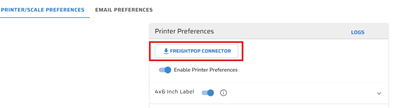
- Once the download is complete, open the setup file to begin installation.
- If a Windows security prompt appears, click More Info, then select Run anyway to continue.
2. Set Up the FreightPOP Connector
- After installation, launch the FreightPOP Connector application.
- When prompted, enter your FreightPOP username and password.
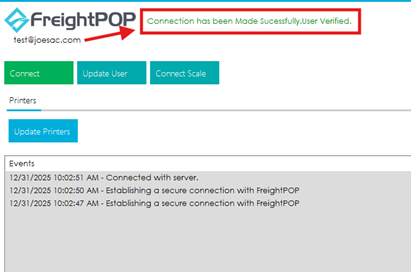
- Confirm that you see a message indicating a successful connection.
3. Add and Configure Your Printer
- Verify your printer is installed and working on your computer (test print if needed).
- In FreightPOP, navigate to your User Profile page.
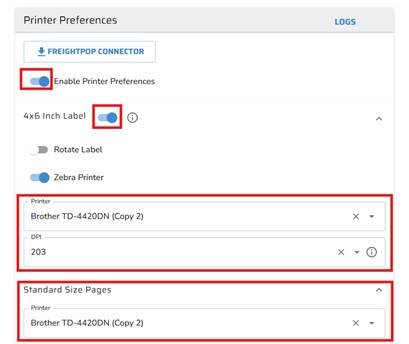
- Locate the Printer Preferences or Printing Settings section.
- Click Enable Printer Preferences (or a similar option).
- Select your printer from the dropdown list. If it does not appear, confirm the printer is installed and the connector is running.
- Assign the printer to the document types you want to print.
4. (Optional) Set Up a Scale
- Connect your USB scale to your computer.
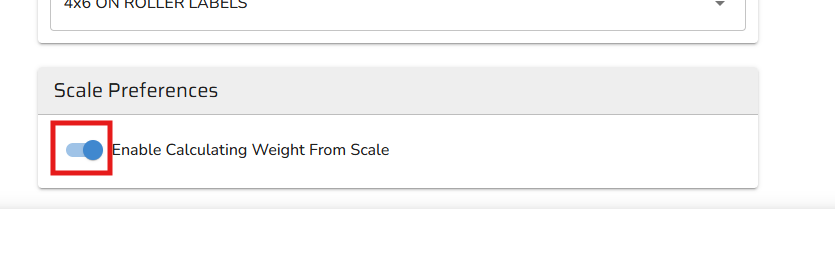
- In your User Profile, find the Scale Preferences.
- Enable the scale and select it from the dropdown list.
5. Start Printing
- Ensure the FreightPOP Connector application is running on your computer.
- When printing from FreightPOP, your selected printer will be used automatically for the assigned document types.
- The connector will automatically start after a system reboot, but you can also open it manually if needed.
Helpful Tips
- The connector must remain open for printing and scale functionality to work.
- If you change or add printers, remember to update your User Profile settings.
- If labels stop printing, restart the connector and check your User Profile settings to ensure printers are assigned.