
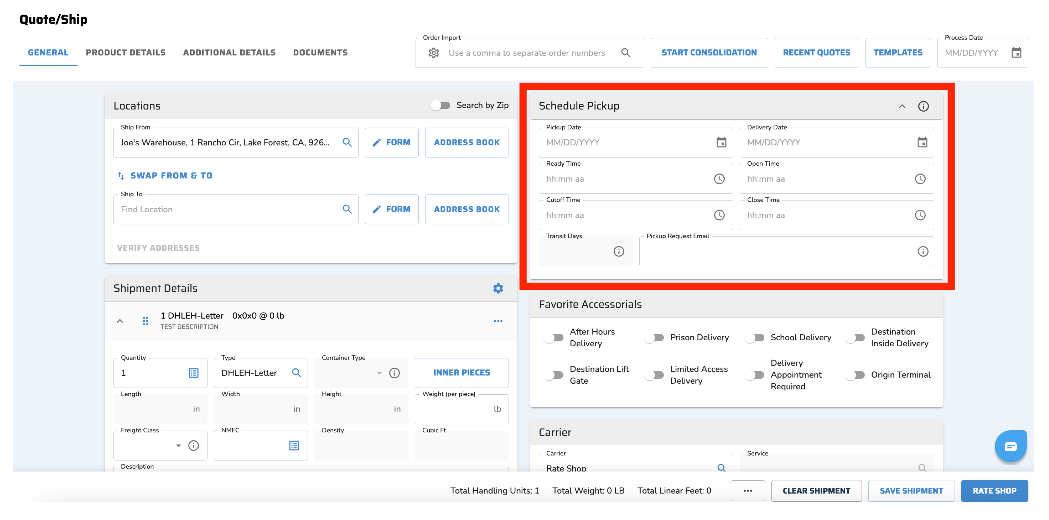
The Schedule Pickup card can be found on the Quote/Ship page.
The pickup section allows users to enter the pickup date and window, as well as the delivery date and window. If the pickup date, ready time, and cutoff time are not filled in, the pickup will not be scheduled.
Some carriers require a pickup to be scheduled at the time of shipping. If you fail to schedule the pickup for these carriers, the system will notify you that a pickup is required.
A default can be set at the user level to auto-populate today's date and default hours based on the User Manager settings. Alternatively, users can set default hours without a default date. In this case, the hours will only appear once a pickup date is entered.
If the Ship From address includes open and close times, those hours will auto-populate when a pickup date is selected.
Users must enter pickup times in the pickup location’s time zone. If the entered time has already passed in that time zone, a 'ready time before pickup' error will be triggered.
The Add Message feature allows users to include an additional message in the pickup request email.
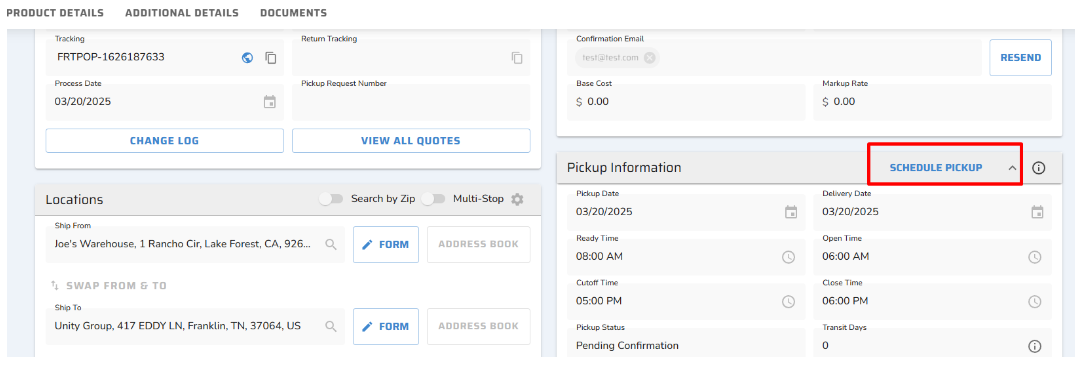
Pickups can be scheduled even after a shipment has been processed, directly from the Shipment Details page. However, once a shipment is canceled, the button will no longer appear.
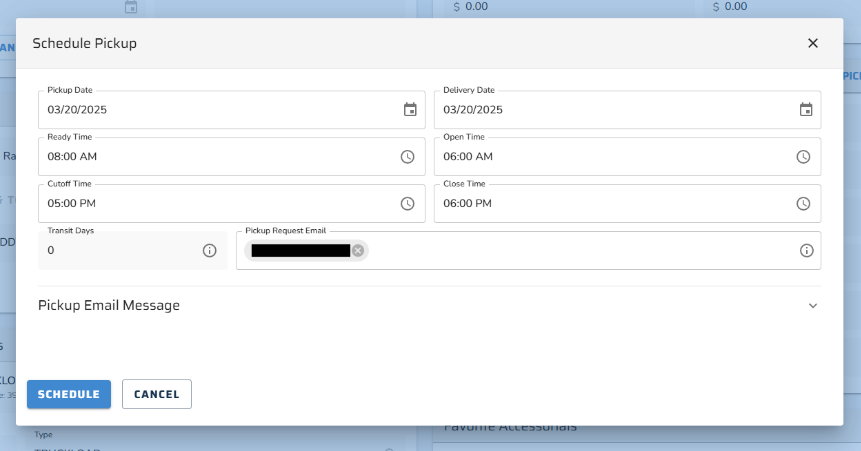
If a shipment has a package type of truckload, or if the service includes "truckload" or is marked as "service TL," the 2-hour validation for scheduling the ready and cutoff times will not apply, allowing the user to enter the same time for both. However, a cutoff time cannot be set before the ready time.
Pickup Confirmation Responses
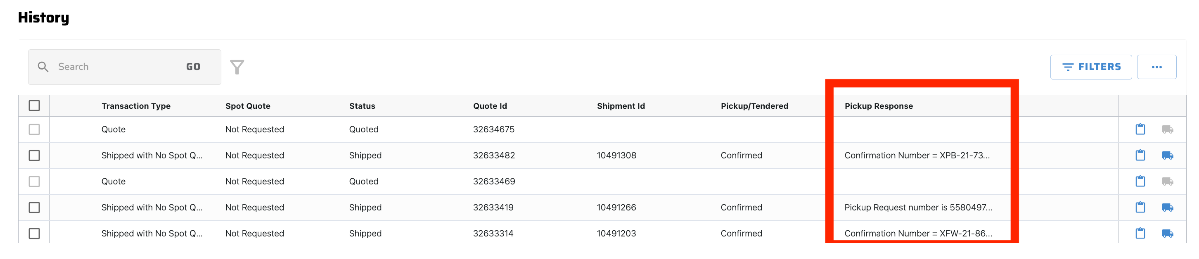
Pickup responses can be viewed on the History page within the pickup response column. The Pickup/Tendered column will state the status of the shipment.
Pickup Window
The Schedule Pickup section in Quote/Ship should be collapsible like an accordion in the Shipment Details page. The collapse button will be placed to the right of the info icon, swapping their current positions. By default, the section will be open, but users can collapse it. This feature will be applied to all instances where the Schedule Pickup section is used, including orders, Quote/Ship, and Shipment Details.
The Schedule Pickup section is collapsible in orders, Quote/Ship, and Shipment Details.
The section defaults to open when the page loads.
The collapse button will be positioned to the right of the info icon.
A new prop will be added to the component.
Notes
On the pickup request email for Ocean Carriers only, we include CBM for the carriers reference. When dims are sent in inches, CBM is calculated as = (Length * Width * Height) / 61023