
A confirmation email can be sent from the system to notify a consignee, customer, or other recipient that a shipment is on its way. This option is available prior to clicking Ship It after rate shopping or selecting a specific carrier and service. Additionally, a confirmation email can be sent or re-sent after shipment processing by accessing Shipment Details. Multiple email contacts may be entered in the confirmation email field; however, each address must be separated by a comma followed by a space (example: test@test.com, support@freightpop.com). If the contacts are not formatted accordingly, the email will not be sent.
The confirmation email includes basic shipment details, as well as carrier, service, a hyperlinked tracking number, and PO and SO numbers.
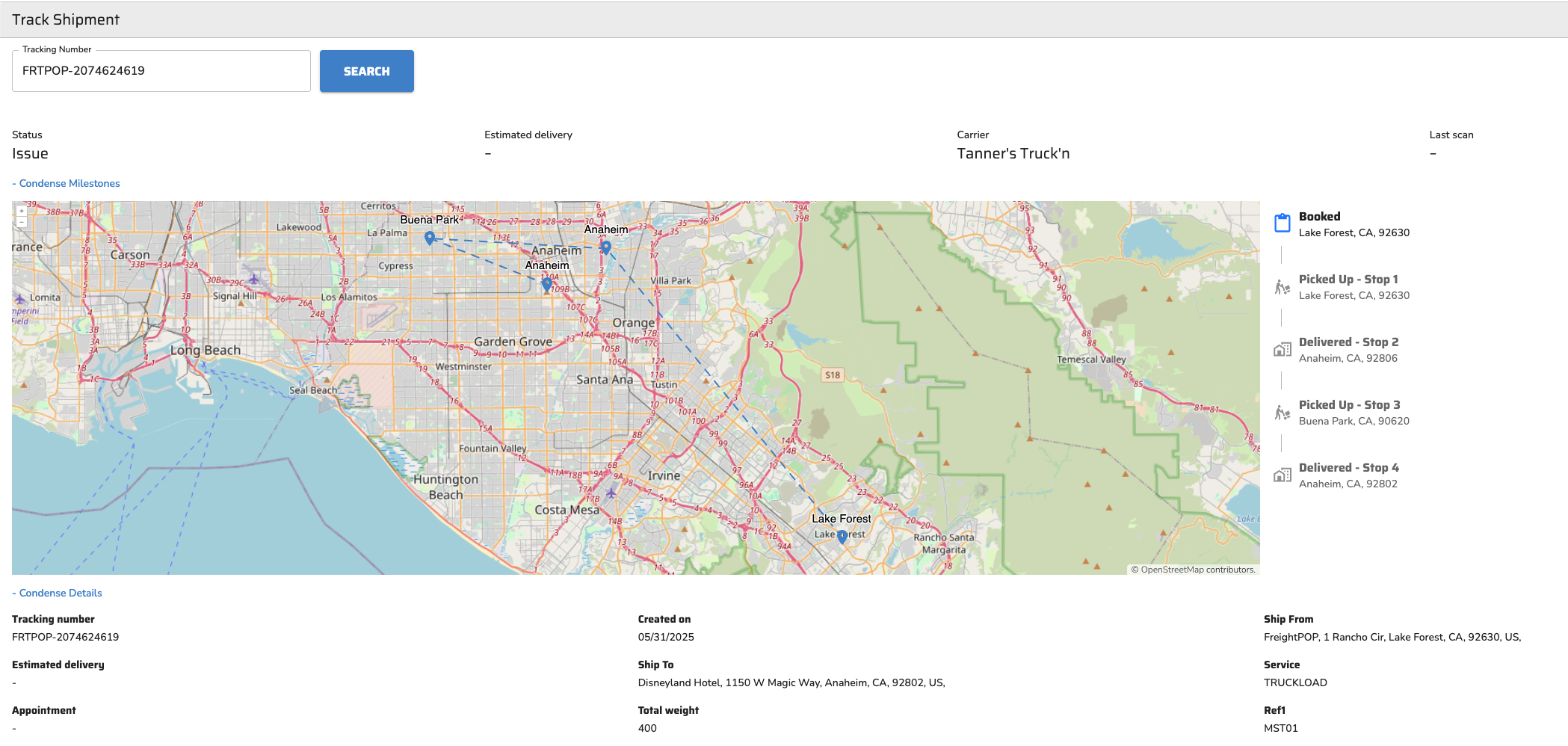
The hyperlinked tracking number either directs to the carrier’s public tracking portal or, for carriers without public tracking or for user-defined carriers, to a FreightPOP-hosted tracking page (no login required).
Confirmation Email Settings
On the Company page, under Documents and Labels, there is a Confirmation Email Settings button.
In this menu, users can:
Add their own message to replace the default message (pictured below)
Set Ship To Email as Confirmation Email
This will pre-fill the Send Confirmation Email to field on the Quote/Ship page. This can be overwritten.
Additionally, the following settings can be toggled on/off:
Attach Packing Slip: Packing slip attached to email
Do Not Include Carrier Rating on Confirmation Email: The users own carrier rating will be excluded
Default Email Notification Once Carrier Provides Tracking: Wait to send email once carrier provides tracking number (if not immediately available)
Show Residential Delivery note
Show Contact for Questions: Contact email and phone number is pulled from Company Details in the Company page.
Include POD in Delivery Confirmation Email: When the shipment has a POD uploaded, it will be attached to the Delivery Notification for the selected carriers. POD can be received via carrier API, uploaded by the shipper, or uploaded by the carrier in the carrier portal.
Fields Included in the Delivery Notification Email
Container ID
Tracking Number
Shipment ID
Carrier Name
Carrier Service
Updated ETA
Order Number
Shipped From
Shipped To
Estimated Arrival Date
BOL
Email Preferences and Settings
Email Setting - Spot Quote Notifications
Receive Only Your Own Spot Quote Emails: Users will get emails only for the spot quotes they personally request.
Receive All Company Spot Quote Emails: Users will get all emails for any spot quotes requested by any user.
Automatic Pickup Reminder Emails for Broker Shipments
To avoid missed pickups, automated email reminders are sent when a pickup is not scheduled within 4 hours after creating an LTL or FTL shipment.
How it Works
Trigger: An email is automatically dispatched if no pickup is scheduled within 4 hours.
User Control: This feature is disabled by default and may be activated in User Settings once a carrier is assigned.
Email Details
Subject: "FreightPOP - Pickup Date/Time Needed for the Recent Shipment"
Message: A reminder to schedule a pickup is provided, along with a direct link to the scheduling page.
Included Information: Shipment ID, Quote ID, Carrier, Service Details, and Ship/Process Date.
Sender: The email is sent from the configured sender’s address if available, or from noreply@freightpop.com.
Access: Clicking the provided link navigates to /shipmentdetails/quoteID (login required).


