
The Accessorial Agent suggests the right accessorial charges (like liftgate, residential delivery, or limited access) at the moment you create a shipment. It looks at the origin and destination addresses, classifies the location using AI plus map data, and recommends accessorials that are likely to apply, so you do not miss charges that would otherwise show up as a surprise on the carrier invoice.
Unlike the Co-Pilot, the Accessorial Agent is not a chat panel. It runs automatically and surfaces its recommendations inside the address validation modal on the Quote/Ship page.
Enabling and Configuring the Accessorial Agent
There are two steps: FreightPOP makes the agent available for the company, then the company turns it on in Company Rules.
Step 1: Availability (FreightPOP Internal Admin)
A FreightPOP internal admin enables the Accessorial Agent for the customer company from the internal admin panel. This is not a customer-facing setting: customers do not see or control it. Until this is on, the option in Step 2 does nothing.
Step 2: Turn It On (Company Admin)
Once the agent is available, a company admin enables it in the app:
Go to Admin > Company Rules > Address Validation.
Turn on Enable Accessorial Agent.
Save.
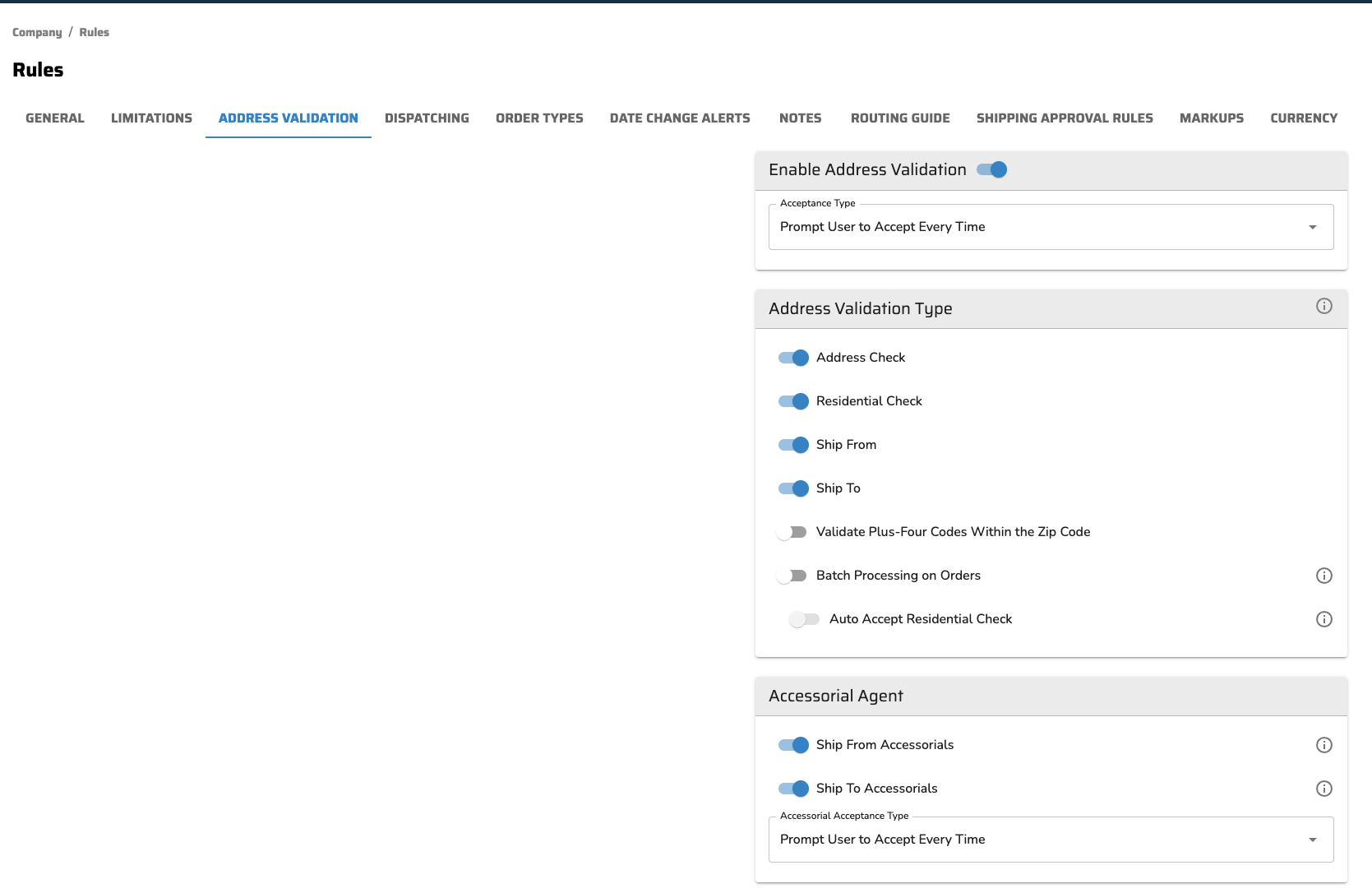
Users can have this run on just ship from locations, just ship to locations, or both
Users can decide, similar to the address validator, to be prompted every time, or have the system auto accept them. We recommend having the prompt every time until the team gets comfortable with the new flow.
Note: Because the setting lives under Address Validation, the Accessorial Agent runs as part of the address validation step on Quote/Ship. Once it is on, every user at that company sees the suggested accessorials panel in the address validation modal. No per-user setup is needed.
Where the Accessorial Agent Works
The Accessorial Agent runs in the same place as the address validator currently, notably order management and quote/ship.
How It Works
When you enter or validate an address on the Quote/Ship page, the address validation modal opens, depending on your company settings.
Specifically for the Accessorial Agent it only runs when the shipment is going LTL. The system makes that determination by ensuring the shipment detail has a qty and package type that goes LTL (ex: pallet). For customers that import orders and fill out shipment details after the system will provide a message and a red notification to let the user know there is a possible suggestion.
When you click on the verify address you will see:
A list of suggested accessorial codes for the address, each one you can accept or deselect in one click.
A "Select All" option to apply every suggested code at once when they all apply.
An info tooltip on each suggestion with a short reason it was recommended, so you can verify before accepting.
A confidence score so you can decide whether to trust the suggestion or check it yourself.
A map and Street View of the address to help you confirm what kind of location it is (for example, a residential street vs a commercial dock).
The agent also checks the pickup and drop-off dates: if either falls on a Saturday or Sunday, it suggests the matching weekend accessorial. Your selections are saved and restored if you refresh or navigate away, and the modal confirms when your changes are saved.
Seeing Which Accessorials Were AI-Recommended
After you accept a recommendation, FreightPOP keeps track of which accessorials came from the agent rather than from manual entry.
AI-recommended accessorials show a small "i" info icon on the chip, so anyone reviewing the shipment can tell what the agent suggested.
The choice is recorded in the shipment activity log, so the AI provenance is still visible after the shipment is created.
Note: If the Accessorial Agent is disabled for the company, no suggestions and no info icons appear. The rest of the accessorial workflow stays the same.
Tips for Best Results
Check the confidence score and reason before accepting, especially for higher-cost accessorials.
Use the map and Street View when a location is ambiguous. They are there to help you confirm the address type.
Deselect anything that does not apply. The agent suggests; you decide what actually goes on the shipment.
If the company has the company rule Auto Save Address to Address Book Upon Booking and the address had a selected accessorial, the accessorial will be saved and remembered for future use
Similar to the current address validator there are instances where the company may know info that the validator gets wrong, so users can toggle Address Validated. When that is done, the validator will not run on that address unless information on the address comes in differently. Accessorials will work the same way.
Related articles:


