
There are three primary methods for defining the carrier and service for any shipment:
Import a pre-selected carrier, service, and payee from an integrated ERP.
Select the carrier, service, and payee directly within FreightPOP.
Perform a Rate Shop within FreightPOP.
Each of these categories can be influenced by additional factors, but they represent the core approaches.
Company-specific Rules and Settings—such as the Lowest Cost Always option—can further shape or restrict the available selections. These types of configurations fall under Category 2: selecting options within FreightPOP.
As of March 2020, a circular relationship exists between carriers and accessorials:
Choosing a carrier affects which accessorials appear in both the Favorites and full list views.
Selecting an accessorial filters the carrier list to display only those capable of fulfilling the selected service(s).
Payee
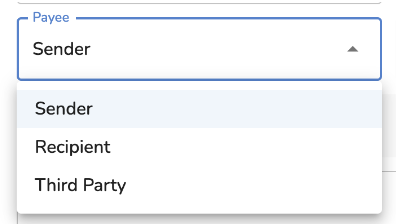
The Payee refers to the party responsible for the shipping charges. Available options include Sender, Recipient, and Third Party. While these categories are straightforward, some nuances exist—particularly between Recipient and Third Party. The Payee field works in tandem with the Payment Type field to determine how billing is processed.
Sender
When the Payee is set to Sender in the Quote/Ship window, the account holder is billed for all freight charges, regardless of the Ship From or Ship To address. In this case, the Payment Type is automatically set to Prepaid.
For LTL and FTL shipments, the system uses logic to determine how the Bill of Lading (BOL) is labeled—Prepaid, Collect (also known as Prepaid or Collect), or Third Party (also known as Prepaid Third Party). Despite the BOL designation, billing is always directed to the FreightPOP account holder.
The system checks the carrier credential information—specifically the shipping street address and zip code fields—to determine the BOL label:
If the Ship From address matches the zip code (and street address, if populated), the BOL is marked as Prepaid.
If the Ship To address matches, the BOL is marked as Collect.
If neither address matches the provided credential zip code and street address, the BOL is marked as Third Party.
The Freight Payment Terms field ultimately determines who is billed. Even if the Payee field updates during processing, a transaction that starts with Sender will retain the Prepaid designation in the Freight Payment Terms.
Recipient
When Recipient is selected as the Payee, the Freight Payment Terms field is set to Collect and remains that way throughout the shipment process. This setup indicates that the recipient (not the shipping account holder) is responsible for the charges. Account information for the recipient is required to proceed.
Third Party
When Third Party is selected, the Freight Payment Terms field is also set to Collect and remains unchanged during shipping. In this case, a third party—separate from both the sender and recipient—is responsible for payment. The account details for the third party must be provided.
Note: When shipping as a true Recipient or Third Party, carriers such as FedEx, UPS, other parcel providers, FedEx Air, and select LTL carriers require validation of the account number and billing zip code. If this information is not accurate, the account will be rejected and cannot be used for billing.
Third Party Account Details
When the Payee is set to Recipient or Third Party, the system determines which account details to apply based on available data.
If the shipment is imported from an ERP and includes third party account information, that data will be used automatically. Manual changes can still be made if necessary.
If account details are not provided via ERP import or the shipment is created manually, the system evaluates the Ship To Company ID and the selected carrier. If the Company ID has an associated shipping account for that carrier, the system will auto-select it. If multiple accounts exist for the same carrier and Company ID, no default is selected, but all matching accounts will be available in the dropdown.
If the Ship To Company ID is blank, the system will attempt to match based on Company Name. It will look for shipping accounts tied to the Company Name (not Company ID) on the backend. If a single match exists for the selected carrier, it will be auto-selected. If multiple accounts exist, none will be defaulted, but they will be listed in the dropdown.
If no matching accounts are found for the Company ID or Company Name, the system will not default any account. Instead, the Ship To address will be used as the third party billing address, but no account number will be populated. The dropdown will include all available accounts for that carrier tied to the tenant, regardless of Company ID or Name. Selecting any of these accounts will override all pre-filled fields in the account details modal.
For parcel carriers, required fields include Account Number, Zip Code, and Country. For non-parcel carriers, required fields include Company Name, Street Address, City, State, Zip Code, and Country.
Defining a Carrier and Service
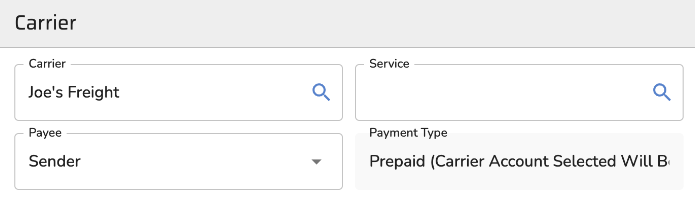
Once a user reaches the Carrier selection section, three key fields are used to define the shipment:
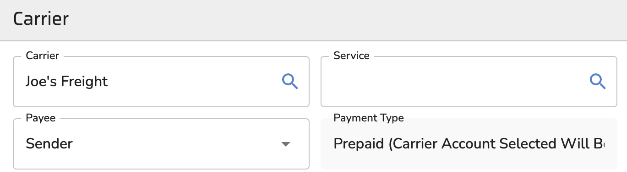
Carrier – Specifies which carrier will be used for the shipment.
Service – Indicates the level or type of service (e.g., Ground, 2-Day Air) offered by the selected carrier.
Payee – Determines who will be billed for the shipping charges (Sender, Recipient, or Third Party).
These three fields work together to finalize how the shipment will be executed and billed.
Carrier
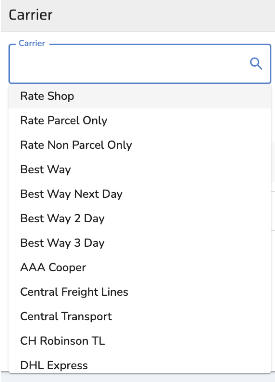
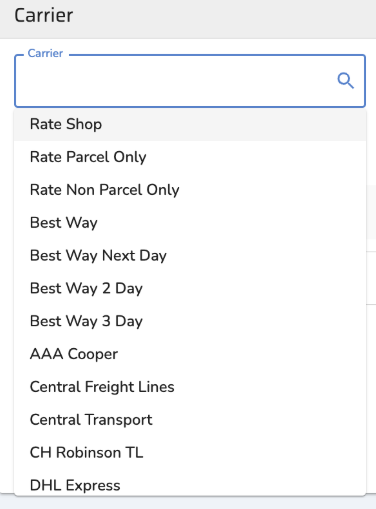
Displays a list of all integrated carriers.
If any accessorials are selected, the list is filtered to show only carriers that support those services.
Rate Shop and Best Ways are always available as options but require the Payee to be set to Sender, due to how Sender billing is handled.
Broker carriers are not included in this dropdown and will only appear during Rate Shop.
Service
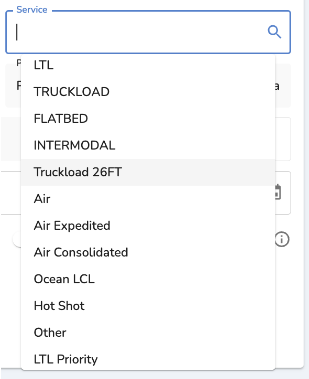
This field becomes active only after a Carrier is selected and remains inactive when Rate Shop is chosen. It displays only the services offered by the selected carrier.
Rate Shopping
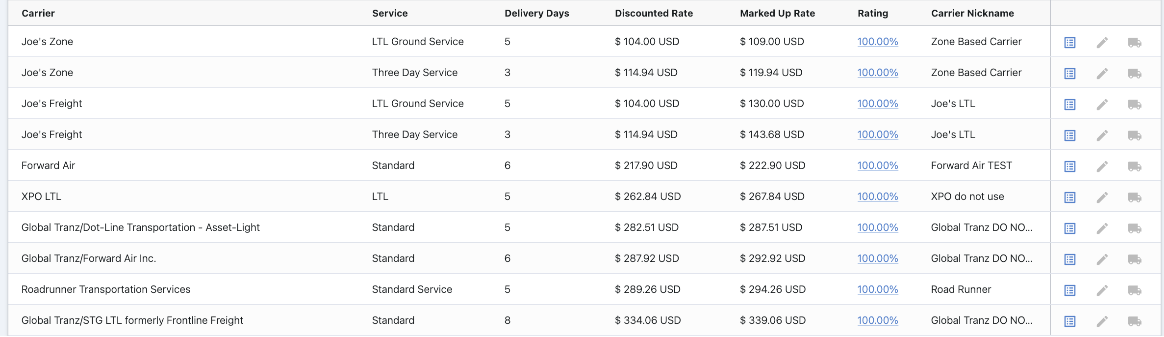
Users can rate shop both parcel and LTL carriers. This option is available across the Orders, Ship, and Broker instances.
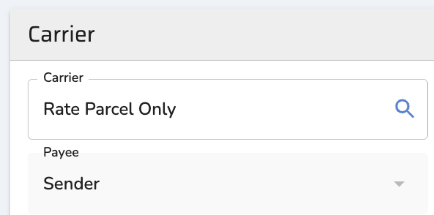
Any carriers who cannot meet the defined criteria will be listed at the top of the screen (example below).

Selecting Best Way from Carrier Dropdown
When selecting any of the Best Way Options, the system will do a rate shop and proceed with shipping the transaction with the carrier with the lowest cost that can meet the Best Way selected.
Best Way = Lowest-cost carrier regardless of transit time
Best Way Next Day = Lowest Carrier with a 1 day transit
Best Way 2 Day = Lowest Carrier with a 2 day transit
Best Way 3 Day = Lowest Carrier with a 3 day transit
Spot Quoting
If no rates are returned, the shipment criteria aren’t met, or the user wants to engage non-integrated carriers, the Spot Quote feature can be used to request one-off quotes for that specific shipment.