
How to Use Volume Calculation for Auto Pack
The Use Volume Calculation for Auto Pack rule allows customers to use User-Defined Boxes or Pallets in the automatic calculation of shipment details. Based on the items listed in the product details, the system will attempt to fit them into predefined bulk packs first if configured and then the largest available box. If the items do not fit into a single box, the system will fill the largest box with as many items as possible, then continue packing the remaining items into additional boxes until all items are accounted for. The system uses the volume of each item and checks item dimensions to ensure they fit within the selected boxes. The inner pieces and shipment description will also be populated automatically based on the packed items.
To enable this functionality, the necessary setup must be completed.
Once configured, the system will calculate shipment details in the Quote/Ship window only and only when the order does not include pre-filled shipment details.
If one or more items are not properly configured or are missing setup, the system will not calculate shipment details and will display an error identifying the item numbers that require attention.
If no appropriate packaging is found, the following error will be displayed: "Based on the volume, weight, and dimensions of the items, no suitable packages were found.”
Setup Process
Company Page / Rules: The Admin must toggle on the Use Volume Calculation for Auto Pack rule.
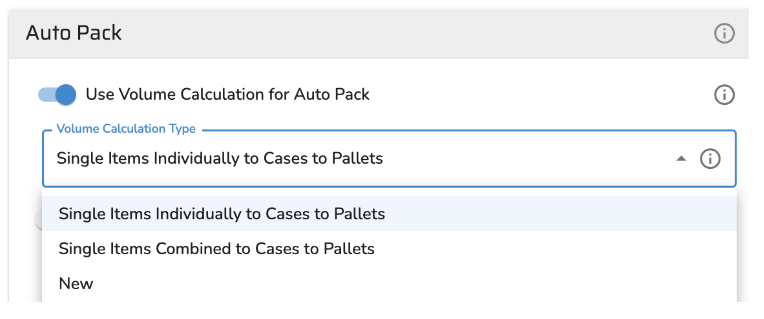
User Manager/Other Defaults: Each user must have the Auto Calculate Shipment Details setting configured in User Manager.
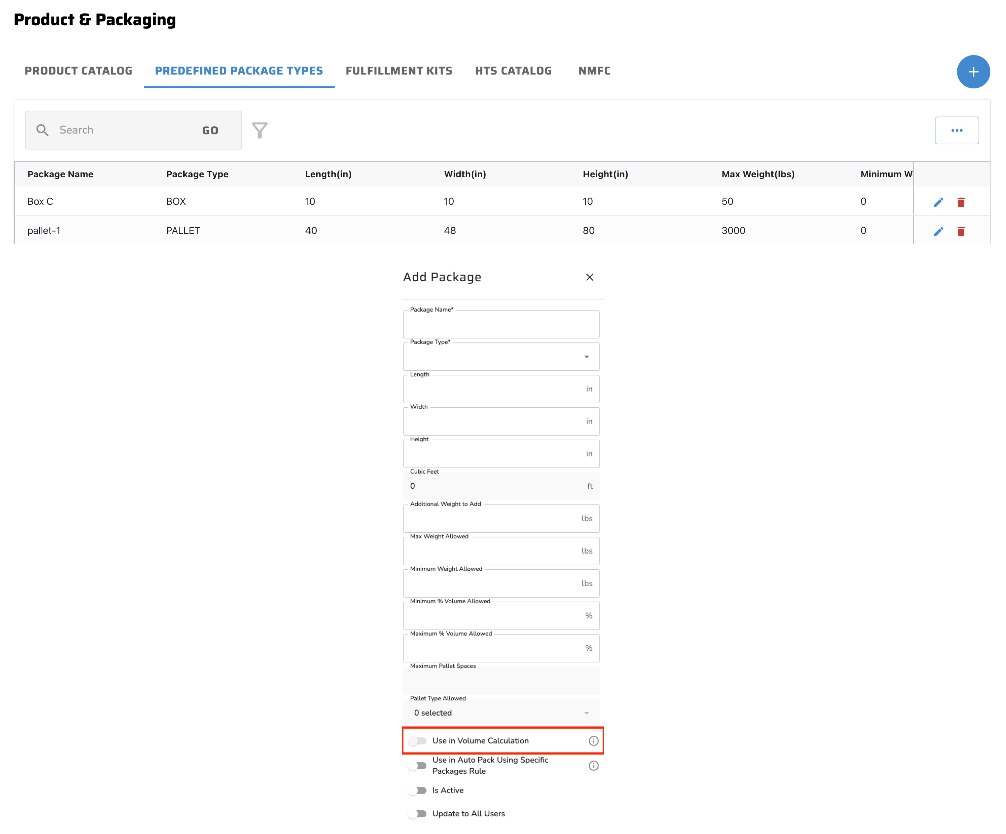
Product and Packaging / Predefined Package Types
You will need to create User-Defined Package types and check off the Use in Volume Calculation checkbox for the rule to use when trying to pack items into packages. The system will only use these packages in the calculation. How Do I Set Predefined Package Types?
The rules will pack items into boxes based on the volume but if any of the items exceed one of the package dimensions or the total weight of the items going into the box exceeds the max weight allowed, not reach the minimum weight or not reach the minimum % of volume, then this package will not be allowed to be used.
If the package is used, the weight of the items inside will be summed. If a value is entered in the Additional Packaging Weight in LBS to Add field, it will be added to determine the total package weight."
Predefined packages can optionally be restricted to specific item categories. When the Auto Pack Specific Item Category Only toggle is enabled on a package, that package will only be used during auto calculation for items whose Category field in the Product Catalog matches one of the package's defined item categories (case-insensitive). Up to 10 item categories can be defined per package. If a package has this toggle enabled but no item in the shipment has a matching category, the package will not be used.
If the rule is turned on and no packages can fit the items, an error should come up that says, “A package that allows the items max weight and dimensions to fit, could not be found.”
Product and Packaging / Product Catalog: Items must be properly configured for the system to calculate shipment details during order import. Each item must include the following required fields:
Item Number
Length
Width
Height
Weight
The following checkboxes must also be selected:
Auto-Calculate Shipment Details Based on Product in Ship Window
Allow Mixing of Parts for Spill Over When Using Volume Calculation for Auto Pack
If your predefined packages use Auto Pack Specific Item Category Only, ensure each item in the Product Catalog has a Category value set. The value must exactly match one of the item categories defined on the target package (case-insensitive). Items without a Category value will only be eligible for packages that do not have any item categories defined.
If the second checkbox is not selected for an item, the system will create individual packages for that item instead of combining it with others in a shared package.
Additionally, if the Bulk Pack fields are populated and the item quantity falls within the defined bulk pack range, the system will prioritize using the bulk pack configuration before attempting volume-based packaging.
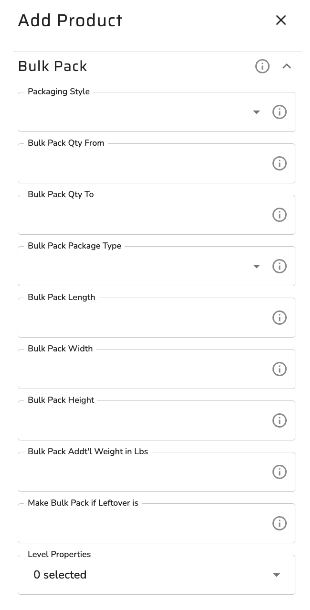
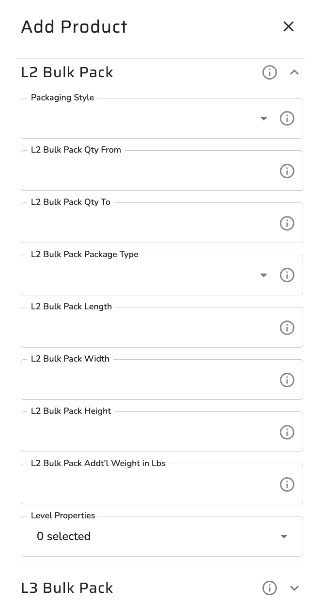
When items are packed into a pallet or a user-defined package type based on a pallet, the pallet height is prorated according to the volume of items it contains. An additional 5 inches is then added to account for the standard pallet height.
Use Volume Calculation for Auto Pack Algorithm and Calculation Logic
The system first checks whether the rule is enabled for both the company and the user. If it's not active at both levels, the rule will not be applied. The user must also have “Single Items Combined to Cases to Pallets” or “Single Items Individually to Cases to Pallets” selected in their user settings.
Next, it validates that each item on the order is properly configured in the Product Catalog. This means the item must include dimensions and weight, and the Auto-Calculate Shipment Details Based on Product in Ship Window checkbox must be selected. If any item is not set up correctly, the system will stop and display an error identifying the problematic item(s):
“One or more items may not be set up in the product catalog.”
The system then checks for the “Allow Mixing of Parts for Spill Over” checkbox. Items without this setting will be packaged based strictly on the Product Catalog setup, including any applicable Bulk Pack 1 or 2 configurations. Items with the checkbox selected follow a different path depending on the user’s calculation type.
If the user is set to “Single Items Individually to Cases to Pallets”, the system processes bulk pack items first, then uses volume-based logic to fit remaining items into the largest available boxes. It continues placing items into additional boxes until all are packed. Packaging decisions are based on the item’s dimensions, weight, volume, and the box’s defined limits. If a pallet is created but can’t accommodate leftover items, shipment details will not be generated, since mixed packaging types (pallets, boxes, outer pieces) are not allowed.
For users with “Single Items Combined to Cases to Pallets”, the system evaluates bulk pack rules first. Any leftover or unmatched items are then packed using volume-based logic, following the same process described above. As with the individual setting, if a pallet is used and cannot handle all remaining items, shipment details will not be created due to packaging type limitations.
Pallet Logic
Once volume calculation results in the creation of a pallet, any additional shipment details will also be generated as pallets. This approach aligns with standard shipping practices, where pallets and loose boxes are typically not mixed within the same shipment.
Possible Reasons Auto-Calculation May Fail to Generate Shipment Details
When the “Use Volume Calculation for Auto Pack” rule is enabled, shipment details cannot include both outer pallet packages and pallets—only one type is allowed per shipment. All items must have the “Auto-Calculate Shipment Details Based on Product in Ship Window” checkbox selected for the calculation to proceed.
In addition, predefined packages marked for Use in Volume Calculation must be assigned to the user.
When these predefined packages are used, the system evaluates several factors:
The total volume that can fit inside the package
Any minimum volume requirements
Minimum and maximum weight limits (if set)
Package dimensions, ensuring that no item exceeds the length, width, or height constraints
These conditions must all be met for the package to be considered during auto-calculation.
Category-Based Package Matching
When predefined packages have item categories configured, the auto-calculation engine applies the following matching logic for Volume Calc types New and Volume Efficient:
Item with a Category set: The system checks all predefined packages for a matching "Item Category" value (case-insensitive, exact match).
If one or more matching packages exist, only those packages are eligible for that item.
If no matching packages exist, the item falls back to any predefined package that does not have categories defined.
Item with no Category set: The item is eligible for any predefined package that does not have any "Item Category" values configured.
Packaging items with differing categories:
When a shipment includes items with different category values, the system looks for packages that support all relevant categories and -- if "Allow Mixing of Parts" is enabled -- attempts to use those shared packages first.
If mixing of parts is OFF for an item, that item is always packaged separately, regardless of category.
If mixing of parts is ON and not all items fit in the largest shared-category package:
Volume Calc type New: The system prioritizes keeping like items together. A package exclusive to a specific category may be introduced for overflow.
Volume Calc type Volume Efficient: The system fills as many items as possible into the shared-category package, then introduces additional packages as needed. The standard rule of working toward the smallest eligible package still applies.
This logic also applies when "Pack on Pallets" is triggered (from Rules or a Routing Guide) and when "Location Specific Packaging" is active -- category-based matching works in conjunction with those constraints, not in place of them.
Category-based package matching is also applied when auto calculation is triggered via the AutoCalc and PackagingRules external APIs.
Rotation Logic
On the individual item level in the Product Catalog, within the Specs and Packaging tab -> Auto Calculations card, there is a toggle called Rotate item to fit when using volume calculation. When this is turned on, when volume calculation runs, the system rotates the item in all possible orientations to try to fit in a predefined package before moving to the next package size up.
Orientation # | Item L → | Item W → | Item H → | ✅ Fit Check Logic |
|---|---|---|---|---|
1 | L | W | H | Box L ≥ L, Box W ≥ W, Box H ≥ H |
2 | L | H | W | Box L ≥ L, Box W ≥ H, Box H ≥ W |
3 | W | L | H | Box L ≥ W, Box W ≥ L, Box H ≥ H |
4 | W | H | L | Box L ≥ W, Box W ≥ H, Box H ≥ L |
5 | H | L | W | Box L ≥ H, Box W ≥ L, Box H ≥ W |
6 | H | W | L | Box L ≥ H, Box W ≥ W, Box H ≥ L |

