
The FreightPOP AI Copilot is a conversational assistant built into the FreightPOP app. It allows users to fill out forms, navigate pages, and take action on shipments and orders using plain-language commands — without clicking through the UI manually.
Enabling the Copilot
The Copilot must be enabled at two levels: the company level (done by a FreightPOP admin) and the user level.
Turning It On for a User
Navigate to Settings > User Manager.
Select the user you want to enable.
Locate the Enable AI Suggestion toggle and switch it on.
Save the changes.
(screenshot: User Manager page with the "Enable AI Suggestion" toggle highlighted in the ON position)
Note: If the toggle is not visible, the Copilot may not be enabled at the company level. Contact your FreightPOP admin or reach out to FreightPOP support.
Where the Copilot Works
The Copilot is currently available on two pages:
Page | Copilot Available |
|---|---|
Quote / Ship | ✅ Yes |
Order Management | ✅ Yes |
Tracking | ? Coming soon |
All other pages | ? Coming soon |
Opening the Copilot Panel
The Copilot panel is a chat interface that appears on the top mid side on Quote/Ship, Order management pages.
To open it:
Navigate to a supported page (Quote/Ship or Order Management).
Look for the FreightPOP AI button on the right edge of the screen.
Click the button to expand the panel.
Once open, the panel shows:
A chat history of your current session
Suggested prompts at the bottom to help you get started
A text input field to type your own commands
A New Chat button to start a fresh session
Tip: If you don't see the FreightPOP AI button, make sure your user account has the Copilot enabled. See Enabling the Copilot above.
Using the Copilot on Quote / Ship
On the Quote/Ship page, the Copilot can help you fill out shipment details using natural language.
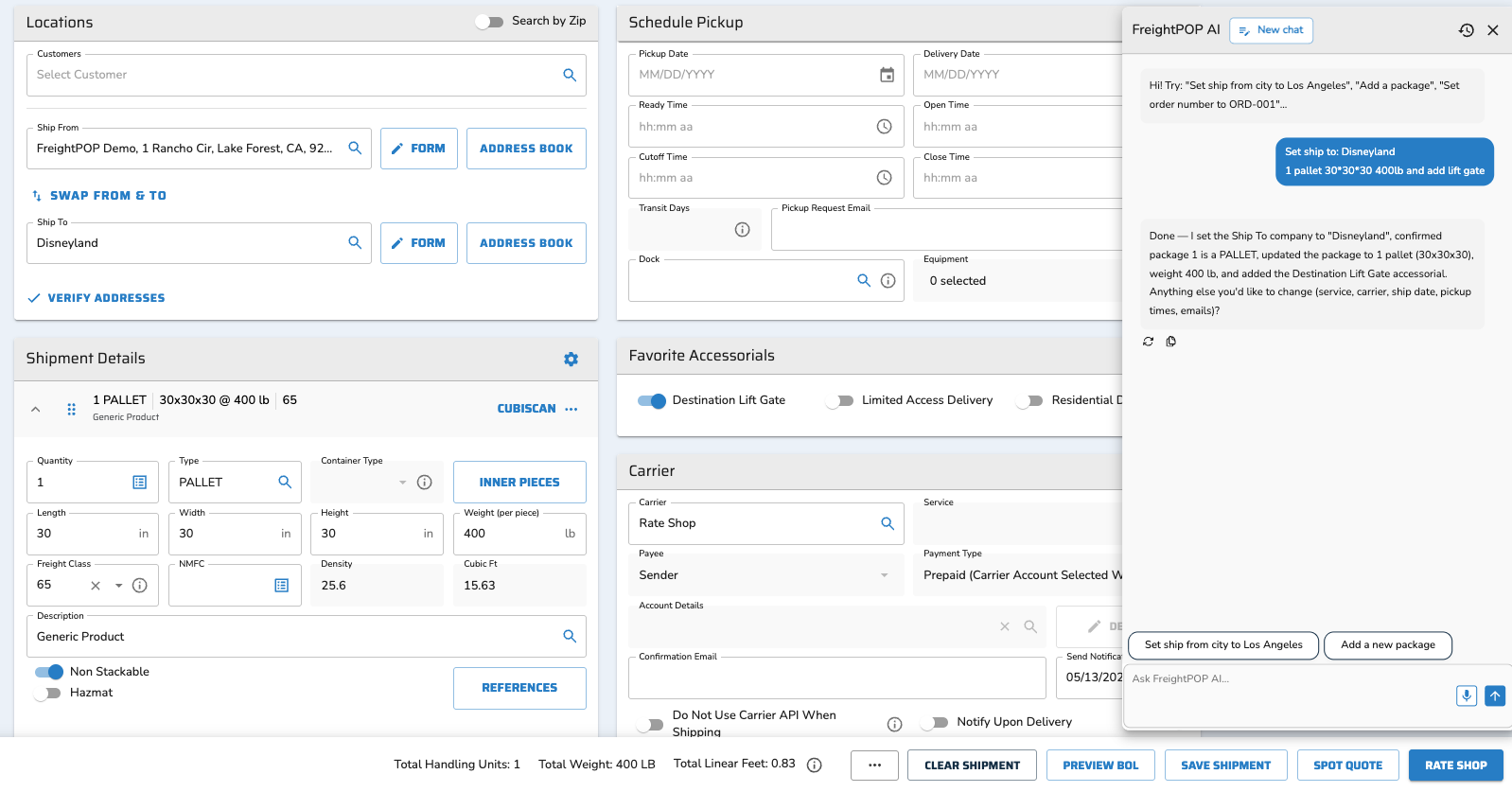
What you can ask:
Set origin or destination: "Set ship from city to Los Angeles"
Add packages: "Add a new package" or "Add 3 boxes, 10x10x10, 50 lbs each"
Set order number: "Set order number to ORD-001"
Set pickup date: "Set pickup date to tomorrow"
Add accessorials: "Add liftgate at destination"
Rate shop: "Rate shop this shipment"
Ship it: "Ship this with the lowest rate"
Import orders:"Import order number fregithpop123"
Tracking the shipment:"Tell me the status for tracking number fregithpop456"
The Copilot confirms each action with natural-language response. If it needs more information, it will ask before proceeding.
Using the Copilot on Order Management
On the Order Management page, the Copilot can navigate the grid, find orders, and run bulk actions on your behalf.
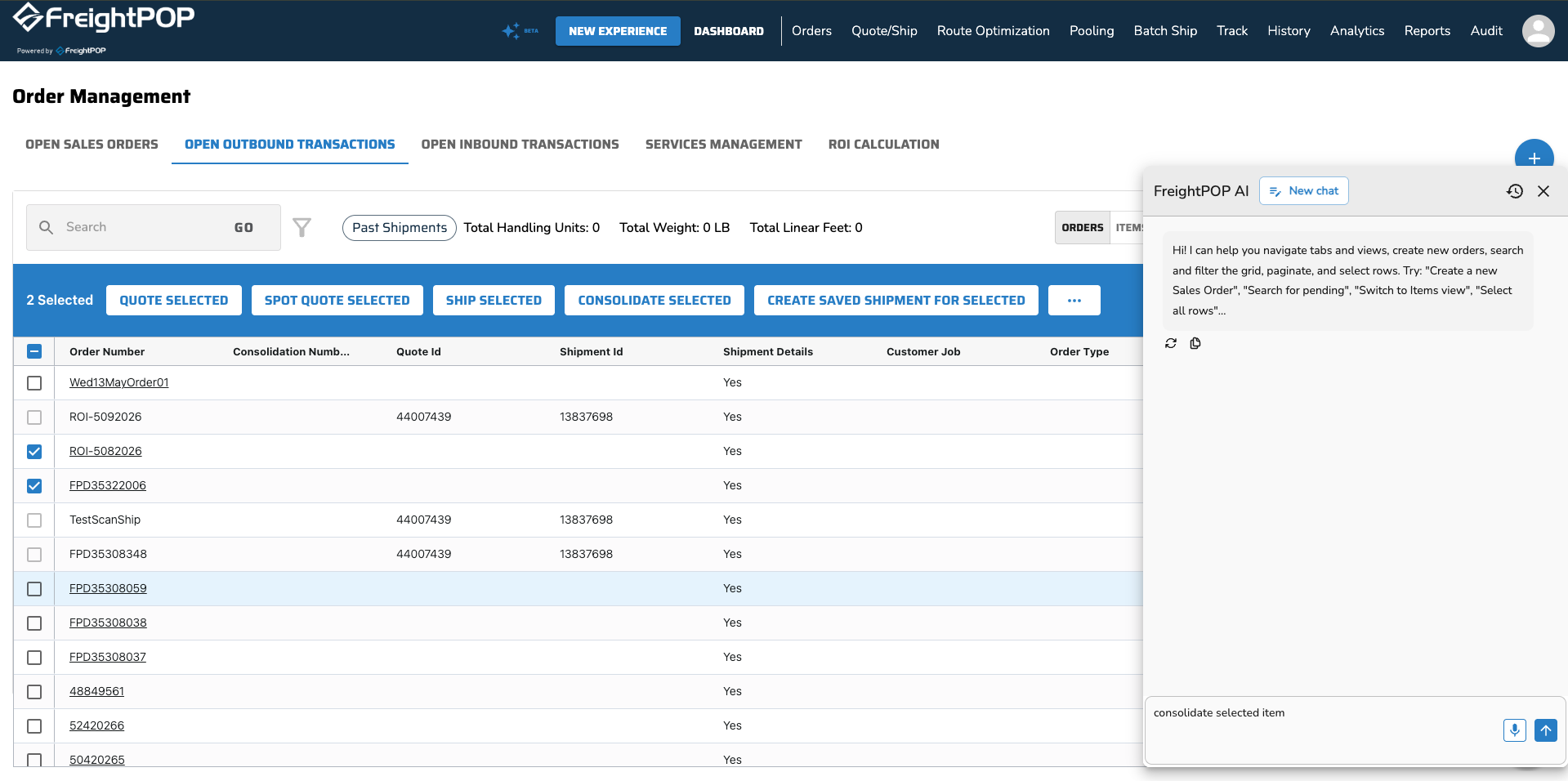
What you can ask:
Navigate tabs: "Switch to Inbound Transactions"
Search for orders: "Show me all open orders this week"
Filter the grid: "Filter by status Pending"
Get order details: "What's the status of order 12345?"
Ask about tracking: "What's the tracking number for order 12345?"
Create an order: "Create a new outbound order"
Import orders
Edit an order: "Edit order 55432 and change the ship date to Friday"
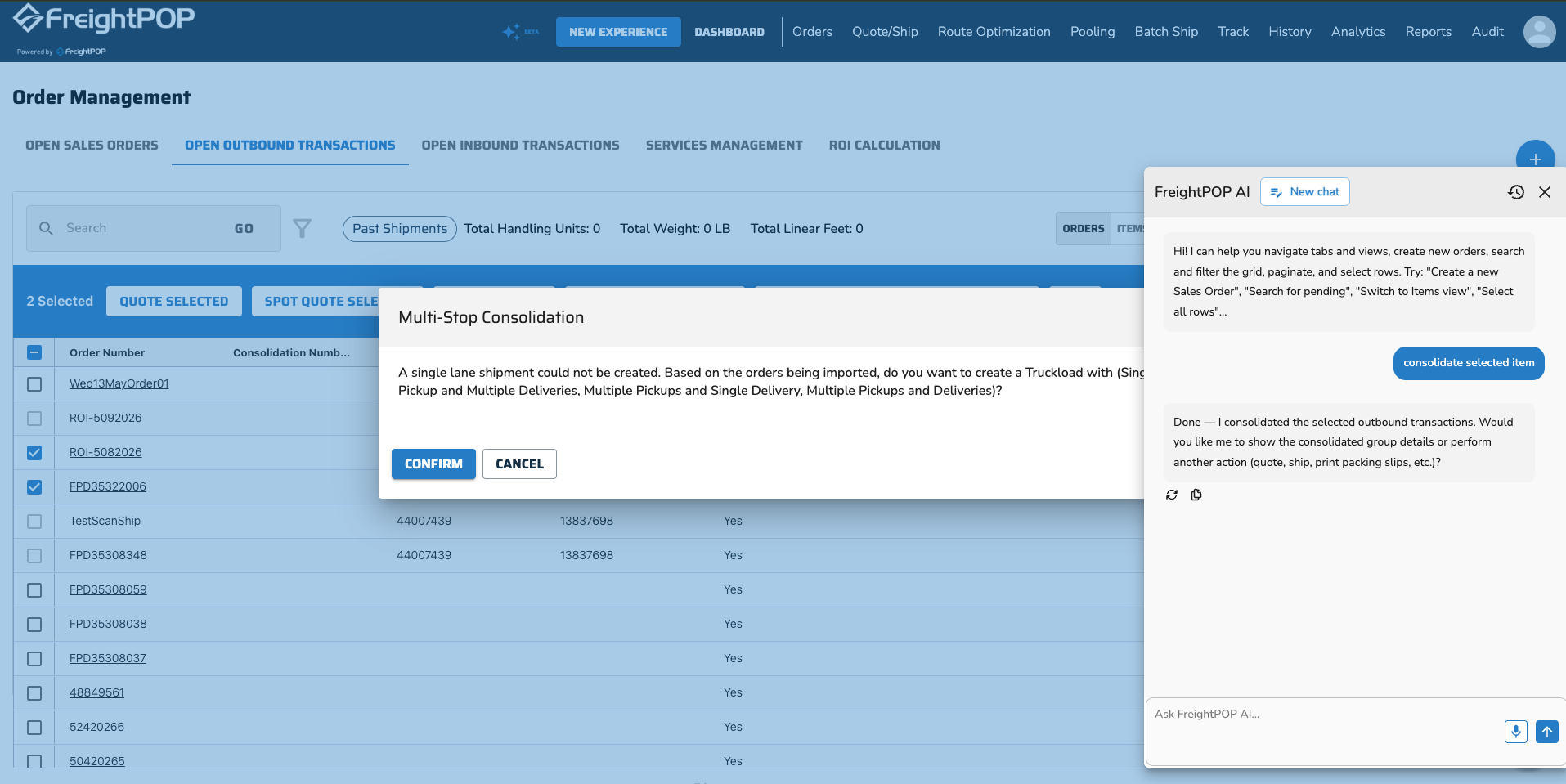
Bulk actions: "Quote the selected orders" / "Ship all selected orders"
Print documents: "Print packing slips for the current selection"
Note: For actions that require confirmation — such as deleting or shipping — the Copilot will present the confirmation step before proceeding.
Voice-to-Text & Chat History
Voice-to-Text
Instead of typing, you can speak your commands directly into the Copilot. Click the microphone icon in the chat input field to start recording. Speak your command, and the Copilot will transcribe and execute it.
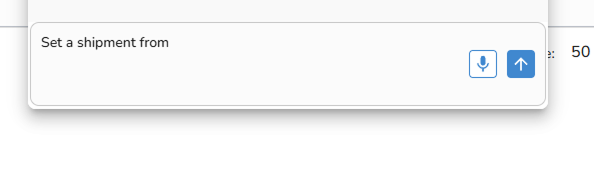
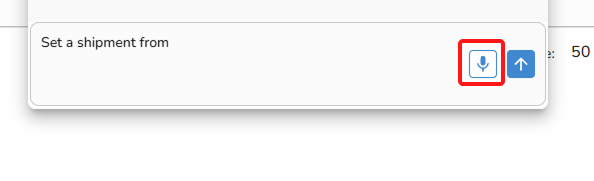
Note: Voice input requires microphone access in your browser. If prompted, allow the permission.
Chat History
The Copilot keeps a record of everything you've said and done within the current session. You can scroll up in the panel to review previous actions and responses.
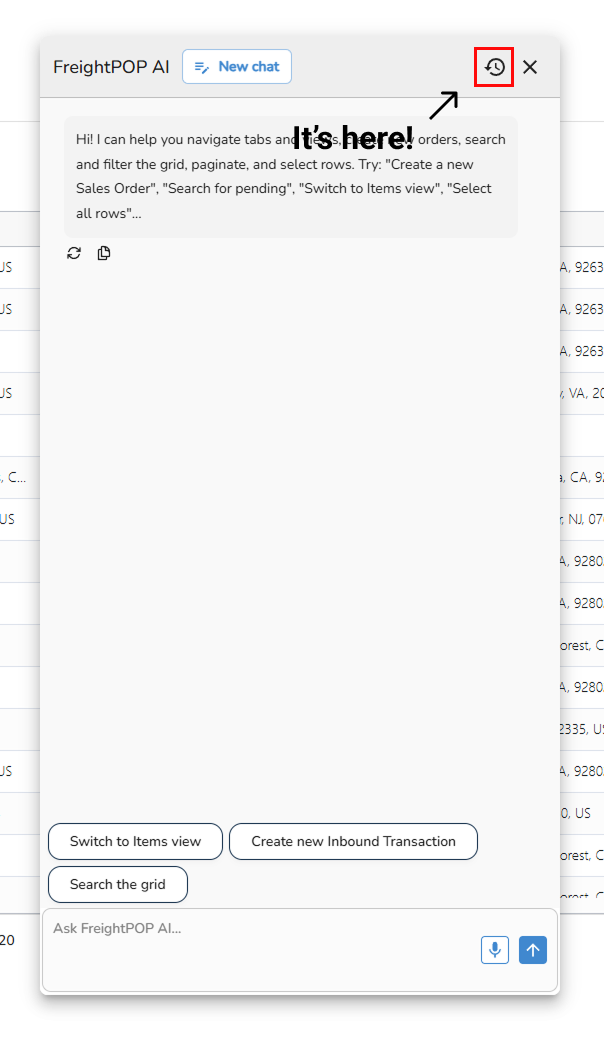
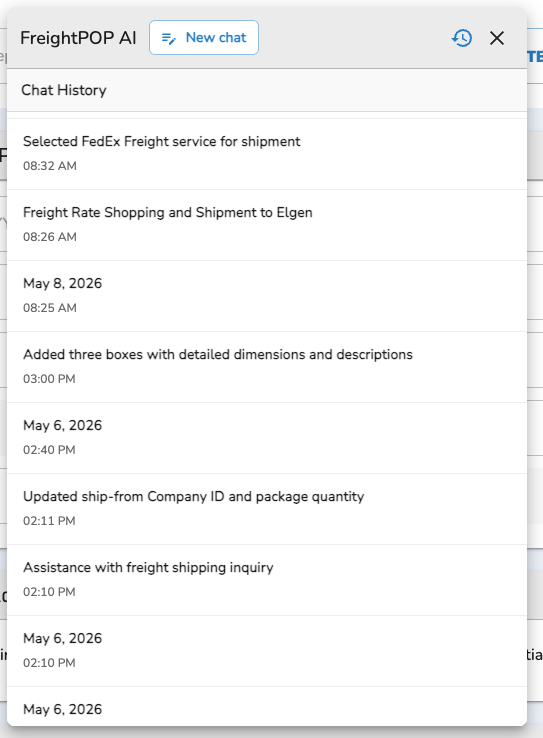
Important: Chat history is session-only. It does not persist after you close the panel or navigate away from the page. To start a new conversation, click the New Chat button.
Tips for Best Results
Be specific. The more detail you give, the better the Copilot can act without follow-up questions.
One action at a time works well for complex fields. For simple fields, you can chain multiple instructions in one message.
If the Copilot asks a clarifying question, answer it directly before giving a new command.
The Copilot does not have memory between sessions. Each new chat starts fresh.
Related articles:


