
Carriers and freight forwarders update ocean container tracking based on their available methods, such as API, EDI, or other integrations. Additionally, companies can subscribe to automated container tracking through the TMS for an extra cost—contact your account manager for details. The additional automated tracking will supplement any information provided by the carrier or freight forwarder. The additional automated tracking offered from the TMS comes directly from the ship liners through FreightPOP’s technology.
The shipping lines provide FreightPOP tracking for the container using the container ID and the shipper’s SCAC code.
Containers can be tracked in FreightPOP for processed shipments, for external shipments uploaded in the container tracking tab, and for containers added to the system that are not tied to a shipment.
For processed shipments and external shipments added, the container tab will only track them if the shipment contains an ocean container package type and teh service is FCL.
Activating Automated Ocean FCL Tracking for a Carrier
Automated Ocean FCL Tracking can be enabled for any carrier, integrating its updates with existing tracking data from both the carrier and the user.
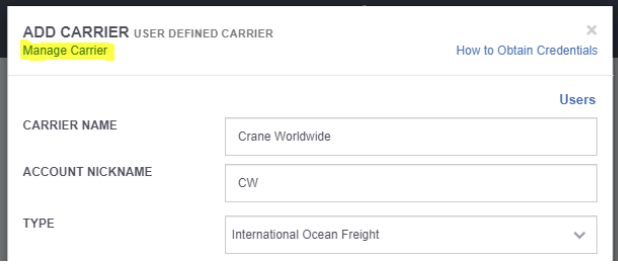
To activate this feature, go to the Carrier Management page, edit the desired carrier, and click Manage Carrier in the top left of the carrier credential window.
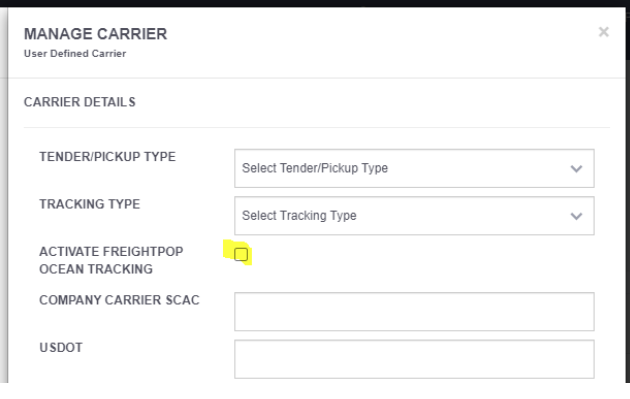
Then, simply check the Activate FreightPOP Ocean Tracking box and save.
Updating Container Information with the Automated Ocean FCL Tracking
If updating or adding a container ID is needed after creating the shipment in FreightPOP, navigate to the Track page and locate the appropriate shipment in the In Transit report.
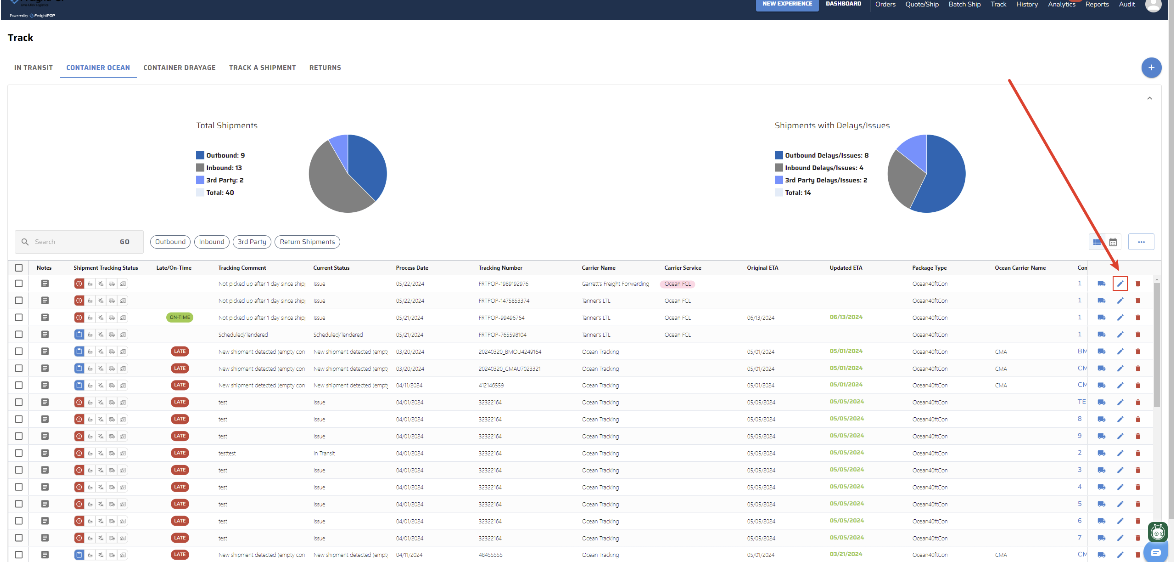
Click the pencil icon. If the shipment is an Ocean FCL, you’ll see an accordion labeled Container Numbers at the top of the modal. Click the dropdown to expand it.
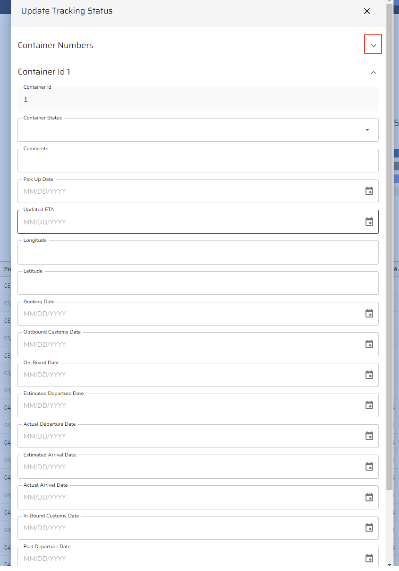
Clicking the down arrow on the Container Numbers accordion will display the current Container IDs, if entered, or a line for each container in the shipment. To receive tracking updates, you must enter both the Ocean Carrier and Container ID. For a list of supported Ocean Carriers, refer to the Carriers Supported section below.
The Bill of Lading is only required for Evergreen shipments, though you can enter it for any shipment if preferred.
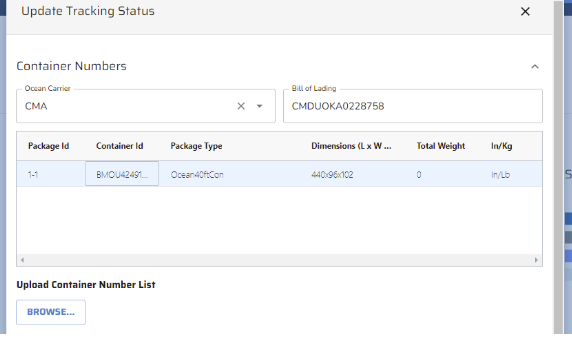
The container numbers can be updated individually or through the Upload Container Number List feature by clicking Browse to upload the template.
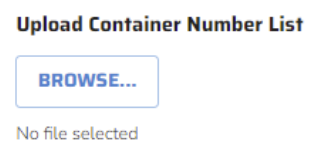
Ensure the template is updated correctly with the available data. See the below and after example below.
Updating Container Information without having the Automated Ocean FCL Tracking (Manual Tracking Updates)
Once the shipment is created in FreightPOP, navigate to the Track page and locate the appropriate shipment in the In Transit report.
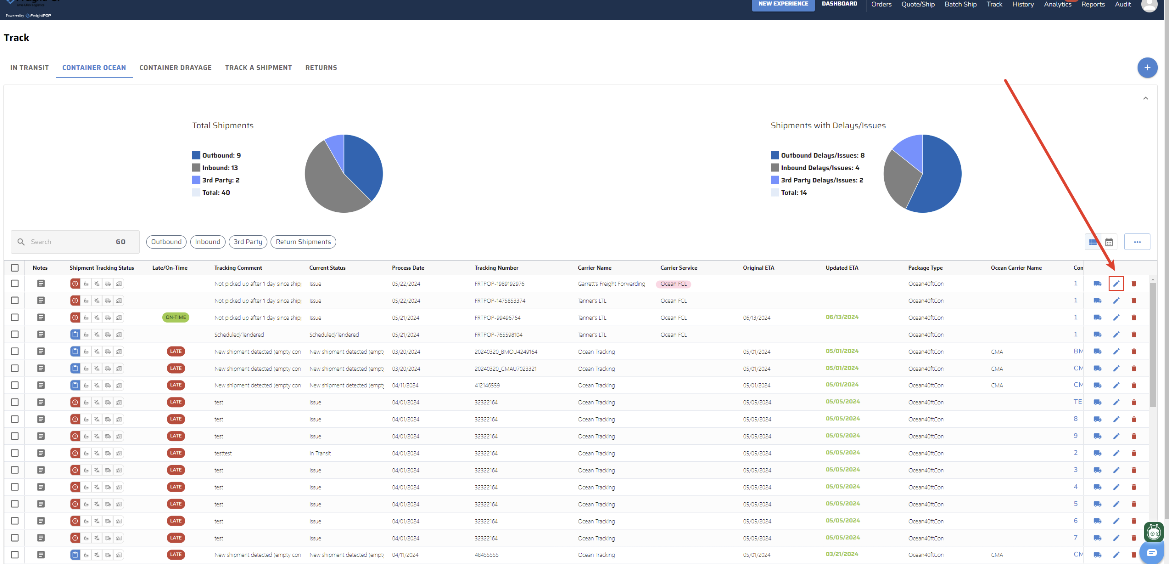
Click the pencil icon. If the shipment is Ocean FCL, the container numbers will be visible and editable at the top of the popup.
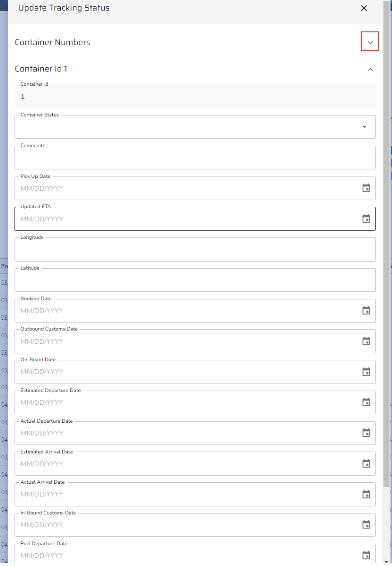
After selecting to view or edit the containers, a window will appear showing the current Container IDs. These IDs can be updated in the Container Numbers accordion dropdown. Changes will be saved after clicking Save at the bottom of the screen.
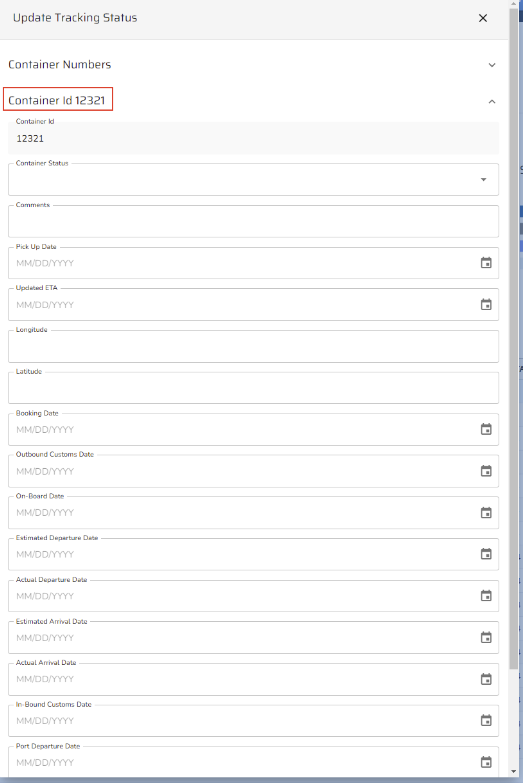
To add tracking information, each Container Number will have its own accordion dropdown for entering details. After making the necessary updates, click Save at the bottom to update the track grid with the changes.
Supported Carriers
ANL
APL
CMA
COSCO
Evergreen
Hamburg Sud
Hapag-Lloyd
Hyundai Merchant Marine
Maersk
MSC
One Line
OOCL
Safmarine
Sealand
Wan Hai
WEC Lines
Yang Ming
ZIM
Adding an Ocean Shipment via Quote/Ship
To add an Ocean Container shipment via Quote/Ship, create
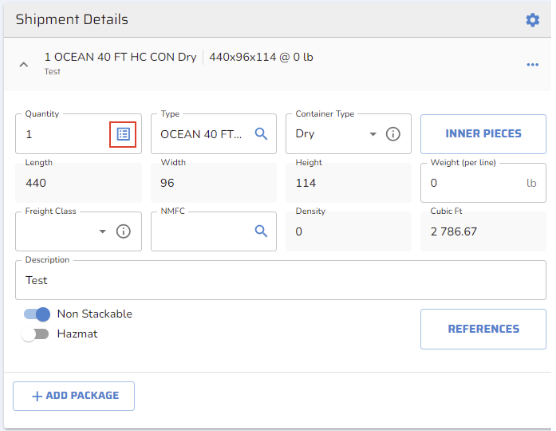
the shipment as usual, ensuring the package type is set to an Ocean Container (e.g., OCEAN 40FT HC CON). Once the container package and quantity are entered, the Additional Details button will become clickable in the Qty section. Click it to add your container information.
A new modal will appear, allowing the update of the Ocean Carrier, Bill of Lading number, and Container IDs. The number of Container ID lines will depend on the quantity entered in the Shipment Details card.
To receive tracking updates, both the Ocean Carrier and Container ID must be entered. The Bill of Lading is required only for Evergreen shipments, but it can be entered for any shipment if preferred.
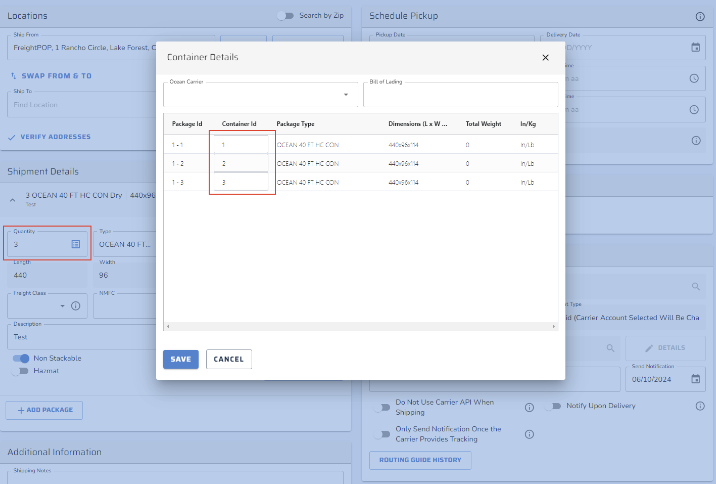
After entering the Container Information, click Save. The shipment must then be processed with a carrier activated for FreightPOP Ocean Tracking and using the Ocean FCL service level.
Once processed, the Ocean Shipment will be trackable from the Container Ocean tab on the Track page.
The system will begin retrieving updates from the carrier.
Note: Ocean carriers only send updates when there is a new update, typically every 6-10 hours. However, the tracking API can be manually triggered by clicking the Container ID in the grid on the Container Ocean tab.